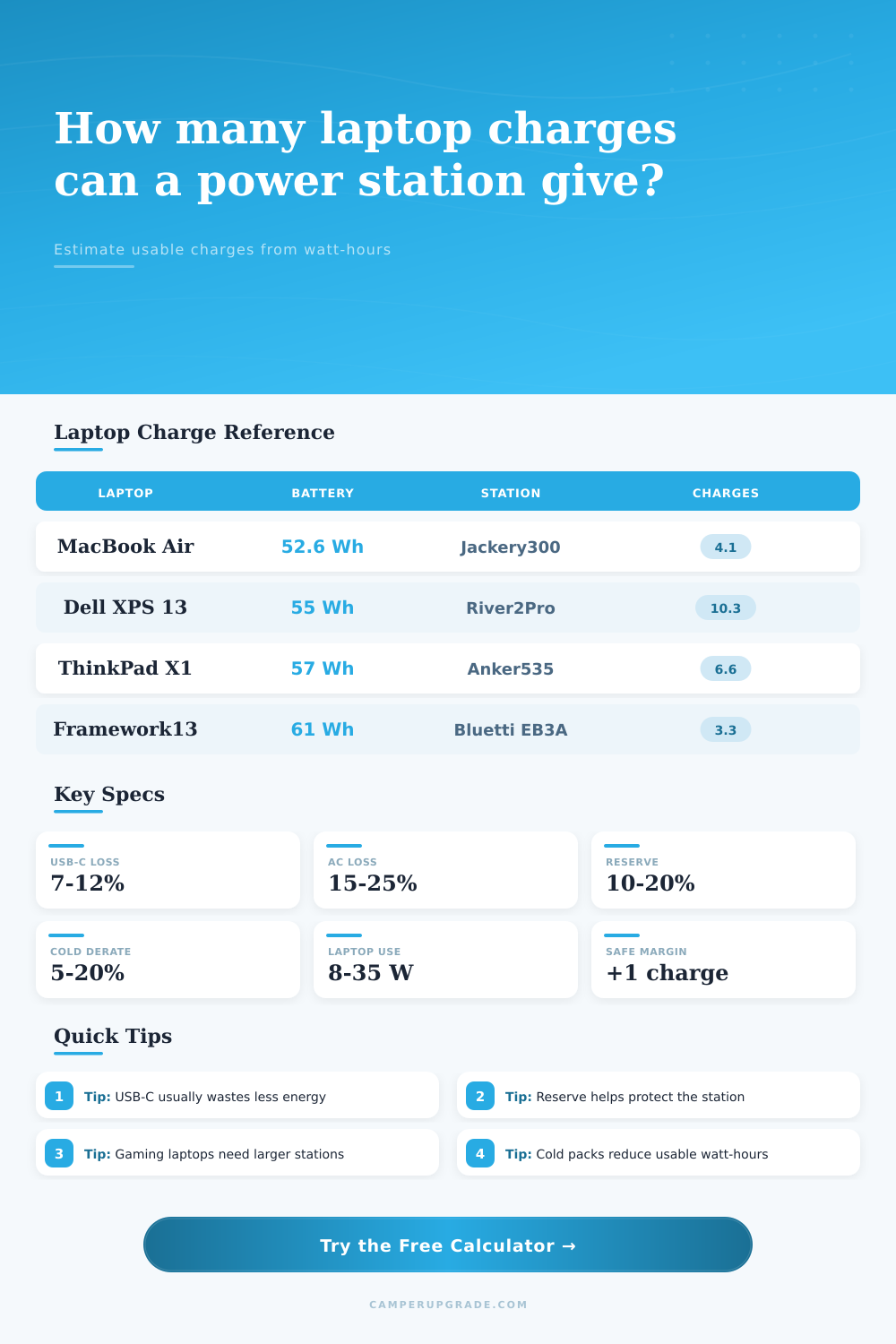
Laptop Charges Per Power Station Calculator
Estimate how many practical laptop recharges a portable power station can deliver after inverter losses, battery reserve, charge window, aging, temperature, and laptop use during charging.
⚡Named Presets
💻Charge Inputs
usable Wh = station Wh x (1 - reserve) x (1 - derate) x efficiency;
energy per charge = laptop Wh x charge window x (1 + overhead) + active-use watts x hours;
charges = usable Wh / energy per charge.
Power Station Laptop Charge Estimate
🔋Spec Comparison Grid
📊Laptop Battery Reference
| Laptop or device | Typical battery | 10% to 100% energy | Best output path |
|---|---|---|---|
| Apple MacBook Air 13 M2 | 52.6 Wh | 47.3 Wh before losses | USB-C PD |
| Apple MacBook Pro 14 | 70 Wh | 63 Wh before losses | USB-C PD or MagSafe USB-C |
| Dell XPS 13 Plus | 55 Wh | 49.5 Wh before losses | USB-C PD |
| Lenovo ThinkPad X1 Carbon | 57 Wh | 51.3 Wh before losses | USB-C PD |
| Framework Laptop 13 | 61 Wh | 54.9 Wh before losses | USB-C PD |
| Microsoft Surface Laptop 5 13.5 | 47.7 Wh | 42.9 Wh before losses | USB-C PD or Surface adapter |
| ASUS ROG Zephyrus G14 | 90 Wh | 81 Wh before losses | AC brick for high load |
| Lenovo Legion 5 Pro | 99.9 Wh | 89.9 Wh before losses | AC brick for high load |
⚡Power Station Charge Examples
| Power station | Rated capacity | Usable via USB-C | MacBook Air 10% to 100% |
|---|---|---|---|
| Jackery Explorer 300 | 293 Wh | 242 Wh after 10% reserve and 92% output | About 4.8 charges without active use |
| EcoFlow River 2 | 256 Wh | 212 Wh after 10% reserve and 92% output | About 4.2 charges without active use |
| EcoFlow River 2 Pro | 768 Wh | 636 Wh after 10% reserve and 92% output | About 12.4 charges without active use |
| Anker 535 PowerHouse | 512 Wh | 424 Wh after 10% reserve and 92% output | About 8.2 charges without active use |
| Bluetti EB3A | 268 Wh | 222 Wh after 10% reserve and 92% output | About 4.3 charges without active use |
| Goal Zero Yeti 500X | 505 Wh | 418 Wh after 10% reserve and 92% output | About 8.1 charges without active use |
🔌Output Mode Efficiency Table
| Output path | Calculator default | Where losses happen | Use when |
|---|---|---|---|
| USB-C PD direct | 92% | DC conversion, cable resistance, laptop battery heat | The station supports enough USB-C watts for the laptop |
| Regulated DC adapter | 90% | DC regulator and connector loss | A matched DC laptop adapter is available |
| AC laptop brick | 84% | Station inverter plus laptop charger conversion | The laptop needs its factory AC charger |
| High-load AC inverter | 78% | Inverter load curve, charger heat, fan overhead | Gaming laptops or heavy workstation use |
| Custom efficiency | User input | Measured from your own watt meter or station display | You have real draw and delivered-energy data |
📐Common Field Scenarios
| Scenario | Calculator inputs | Energy per charge | Planning note |
|---|---|---|---|
| Writing from camp | 55 Wh laptop, 10% to 100%, 8 W for 1 hr | About 62 Wh | Small stations can cover several work sessions |
| Photo backup night | 70 Wh laptop, 20% to 90%, 18 W for 2 hr | About 92 Wh | Active use can equal half another recharge |
| Remote meeting block | 57 Wh laptop, 15% to 100%, 25 W for 2 hr | About 102 Wh | Video calls draw more than simple charging |
| Gaming laptop top-up | 90 Wh laptop, 10% to 80%, 90 W for 1 hr | About 158 Wh | AC inverter loss matters under high load |
| Tablet plus keyboard | 72 Wh device set, 20% to 100%, 6 W for 1 hr | About 68 Wh | USB-C direct keeps losses low |
✔Calculation Tips
A power station arrives and you think, “hey, I have plenty of energy for three days of work!” So you pack a bag, laptop inside, and head out to the campsite. You plug it in and slowly, the charge increase while the station’s battery decreases more quicker then anticipated. Something doesn’t seem right.
There is no exact currency called watt-hours, but when you spend them, there are fewer remaining. Enter this calculator. Get rid of those marketing claims about capacity and see how much energy actualy makes it to your device.
Why Your Power Station Dies Fast
That’s not the only issue, though: There’s also conversion loss. Anytime electricity is converted to a different form, some portion of it become waste heat. With the power station plugged into a regular AC outlet, you’re dealing with a double whammy of inefficiencies. First, there’s the station’s own built-in inverter converting direct current to alternating current for socket. Second, there’s your laptop charger, which take that alternating current and turns it back into direct current. Every additional step means wasted energy… Typically fifteen to twenty-five percent of whole package.
USB-C power delivery avoids that middle step by sending direct current straight from the station to your computer. This can effectively doubles the number of charges you get compared to going AC route. That can be crucial if you’re trying to stretch a weekend trip into a full-on work week.
Lower temperatures will also lower your energy supply. Because chemical reactions within lithium batteries is slower at colder temperatures, they won’t work well in the cold. If you’re sitting in a tent on a chilly morning, that three-hundred watt-hour-rated station may only give you two-hundred. That’s why there’s an option to enter a derate factor into the calculator. Better to err on side of caution and calculate based off a more conservative number rather than being caught unprepared with a laptop shutting down mid-video call.
Most stations cuts out before they get all the way down to zero percent to prevent harming the cells. While leaving some sort of reserve will keep your battery happy in long run, it does mean less juice for you now. But then we complicate things: when you’re actively using the laptop you’re also charging and powering the computer. Running code or editing photos use energy. Even if you aren’t doing anything but sitting there with the laptop on, it is still drawing power. If you want to charge battery, you will need to draw even more. Depending on what you’re running, this overhead could be as much as 20 watts (or more) per hour.
The tool accounts for this by asking how much you use it during the recharge period. It helps translate an abstract battery rating into a concrete schedule of work sessions.
Many folks gets tripped up by just reading out the number of watt-hours being advertised on the box. A five-hundred-watt-hour box means I can run a fifty-watt device for ten hours? Not true! First, there’s a temperature penalty. Second, there are conversion losses. Third, there’s reserve. Before you plug it in, those have to be subtracted from the number you read off the box.
The calculator does this subtraction for you without needing a spreadsheet in the field. All the friction gets accounted for and then it shows you what’s left: the net result.
These variables changes what you bring with you when you travel. If you’re using USB-C and run a dim screen, maybe you can get away with a smaller lighter station. If you’ll be rendering video or gaming on location, then maybe a bigger one will make sense. These little tweaks makes all the difference between being able to work comfortabley or running dry.
This isn’t about having more power. This is about not wasting what you do have. You still bring same laptop. Now you just know exactly how many charges you really have in your pocket to spend.